The slide has three headings, six bullet points, and enough small print to qualify as a reading assignment. You can improve the layout. You can also ask a more useful question: what should someone do with this information?
A clearer slide and a meaningful task can work together. The design problem is deciding what the learner needs to notice, choose, or explain after the information appears.
Begin with one decision
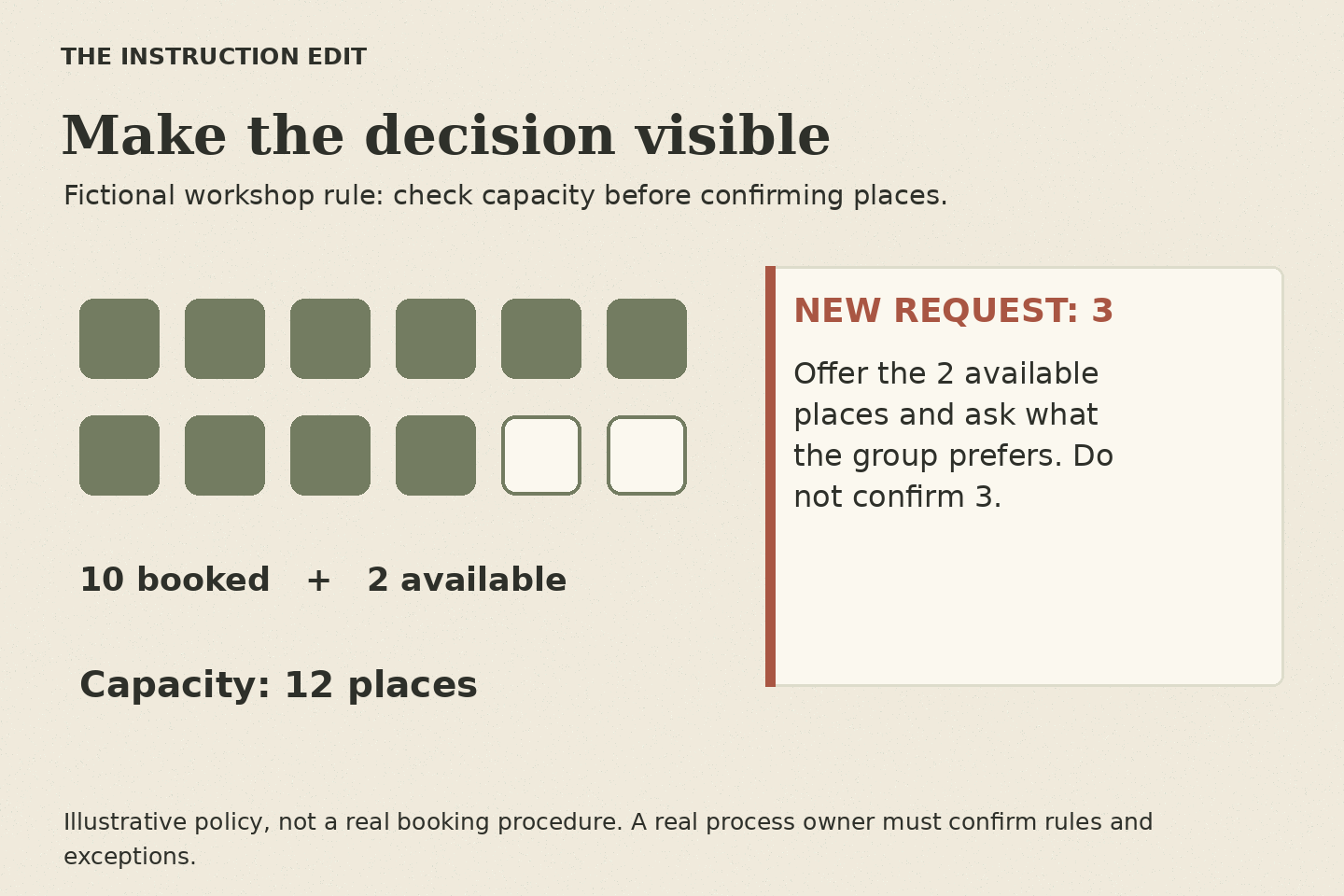
For this fictional example, staff at a community workshop handle bookings. The room has 12 places. Staff must check the current total before confirming a request. If only part of a group can fit, they explain the available places and ask the group what it prefers.
A content-heavy slide could describe capacity, group bookings, exceptions, and confirmation messages all at once. I would choose one decision for the first practice: can this particular request be confirmed under the rule we have supplied?
That decision keeps the edit focused. It does not mean every detail disappears from the training. Some details belong in a reference; others need a later example.
Keep the information the decision requires
Show the capacity rule, the current booking total, and the incoming request together. In this example, keep them visible during practice. Reading the current information is part of the task.
Use plain labels: ‘Room capacity: 12,’ ‘Confirmed places: 10,’ and ‘New request: 3 places.’
A learner should not need to remember a number from an earlier slide to demonstrate that they can apply the rule. If recall were the actual goal, the design might be different. Choose what to keep visible based on the work you are teaching.
The visual edit now has a job: it helps people compare the three pieces of information.
Model once, then change the situation
First model a straightforward case: eight places are confirmed and a group requests four. Twelve places fit the stated capacity. Explain the check before showing the confirmation.
Then give the learner the ten-plus-three case. Ask: ‘What would you tell the group, and why?’
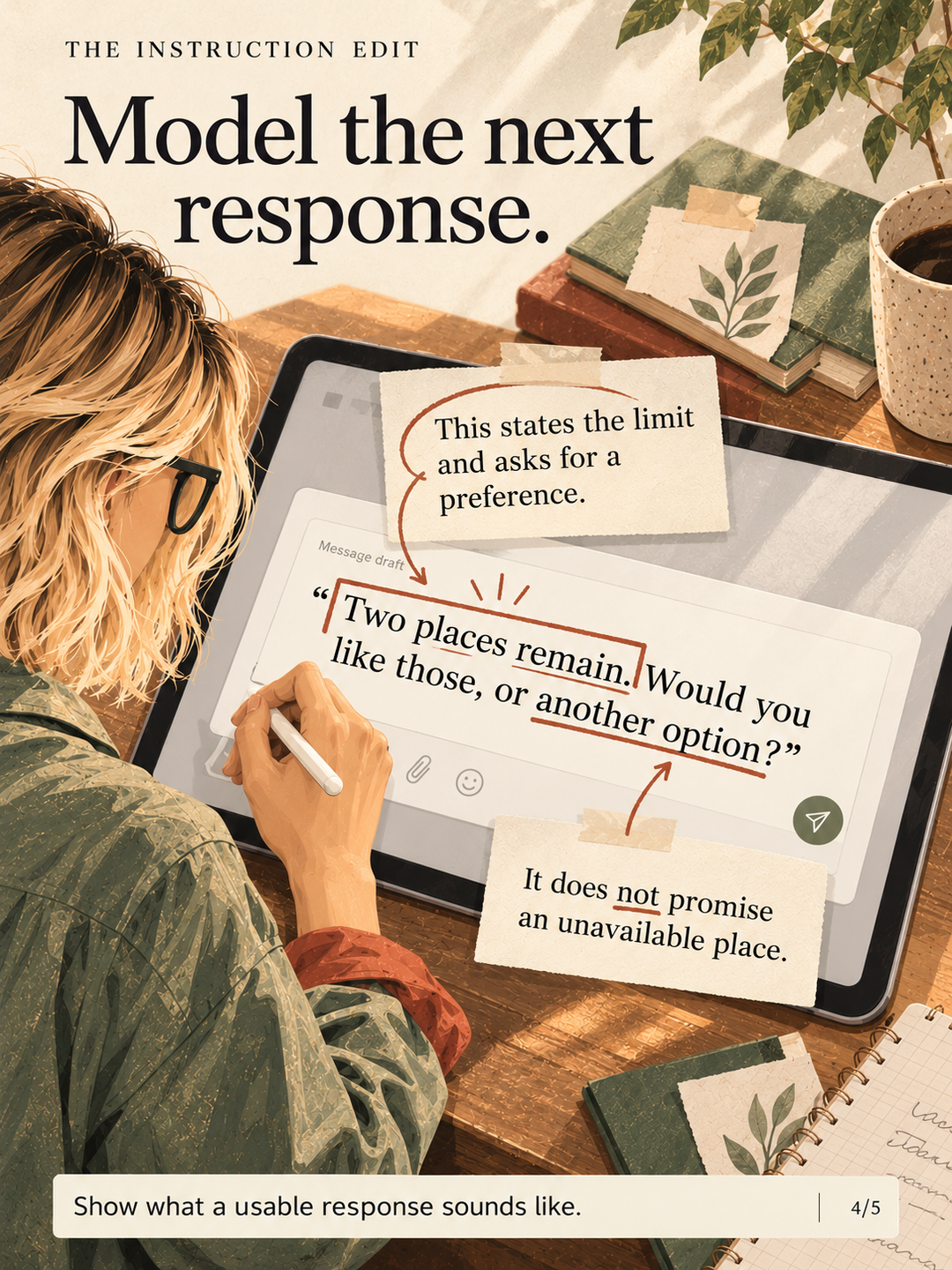
Possible responses include confirming all three places, declining the whole request, or explaining that two places remain and asking what the group prefers. Under this simplified rule, the last response fits.
This is a fictional policy for an instructional example. A real organization may have booking, payment, accessibility, or other requirements that change the answer. Those details need to come from its process owner.
Make the feedback explain the choice
For ‘confirm all three,’ feedback could say: ‘Only two places remain. Confirming three would exceed the stated capacity. Explain what is available before making a commitment.’
For ‘decline the whole request,’ it could say: ‘Two places remain. The rule allows you to offer those places and ask what the group prefers.’
For the appropriate response: ‘This applies the capacity rule and leaves the group’s decision with them. Make the number of available places clear in your reply.’
Then ask for a short written reply. A selected answer and a written explanation reveal different things. Someone might choose the right option but still promise three places in the message.
The wording above is an original sample. CDC’s training standards support aligning practice and feedback with learning goals, but this example has not been tested with employees.[1]
Use the same design question in a classroom
Suppose a science slide explains what makes a fair comparison. Instead of ending with ‘Any questions?’, show two proposed investigations.
Plan A uses the same type of plant, soil, pot size, and water, while changing the amount of light. Plan B changes both light and water. Ask which plan better investigates the effect of light, and what should remain the same.
Students need relevant preparation before that question. The slide can supply a model or clarify the variables. The task then gives the teacher an explanation to inspect.
For younger students, use two clear pictures and an oral explanation. For older students, ask what additional details would be needed before conducting the investigation. The classroom example is separate from the workplace booking task; the useful connection is the design sequence.
A sequence you can reuse
Explain the minimum needed to attempt the task. Model a decision with your reasoning visible. Give a new case. Ask for the response. Provide feedback that refers to the relevant detail. Offer another opportunity to apply it.
You can do this on paper, in a workshop, or on a simple digital page. An interaction is useful because of what the learner does with it, not because it required an expensive tool.
Before publishing the revised material, try the task yourself using only the information a learner receives. If the answer depends on an unstated rule, fix that gap. Then ask an intended learner to try it and pay attention to where the explanation stops being enough.
Open one crowded slide and finish this sentence: ‘After this, the learner should be able to…’ Use that sentence to choose the next task.
Sources
1. CDC, Quality Training Standards, learner engagement and assessment guidance. Applied here as a design reference; the booking and plant-investigation examples are original demonstrations.