
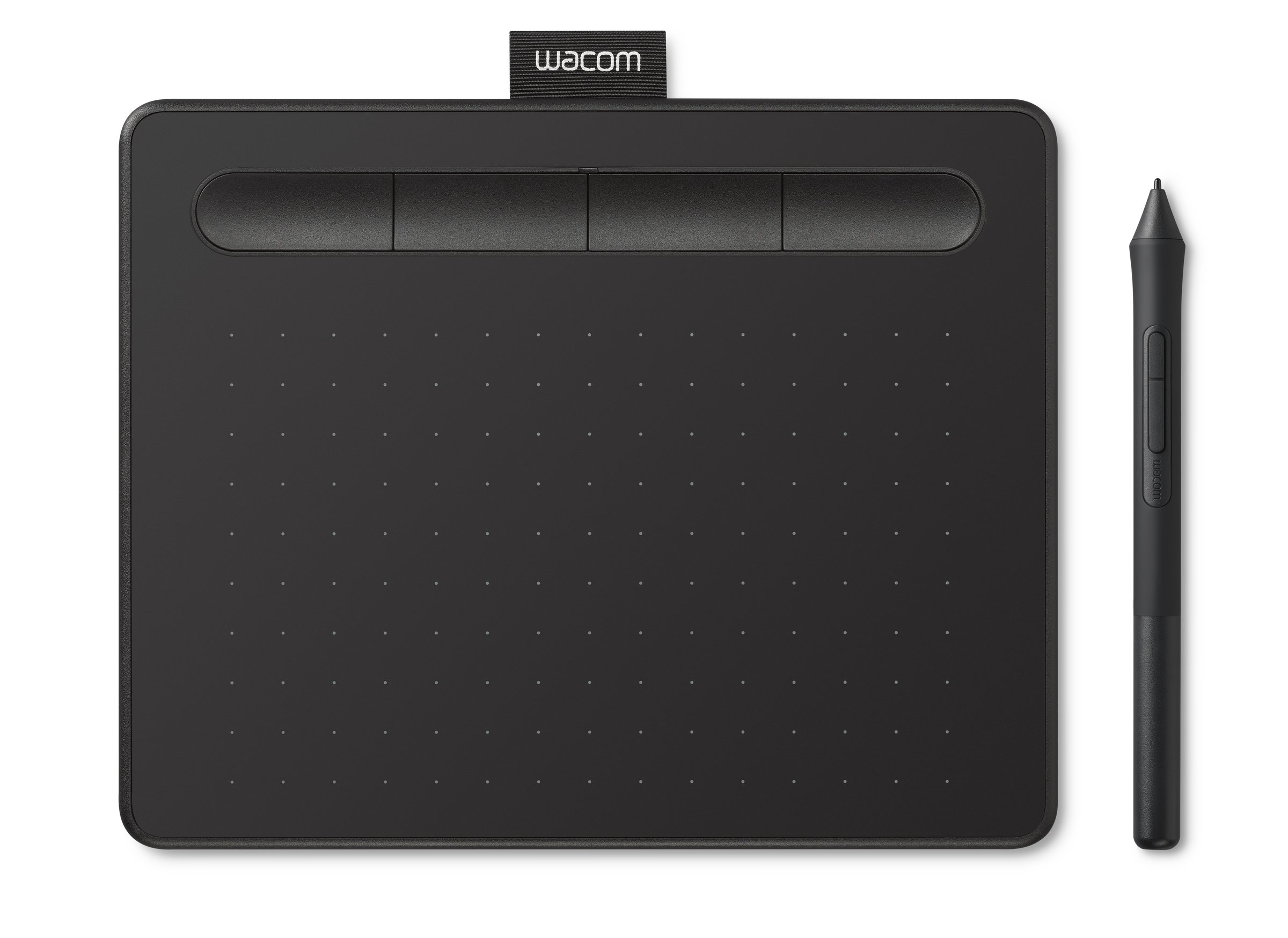
Wacom Intuos Small wired tablet and pen, black CTL4100. Product image courtesy of Wacom, supplied for editorial use through its press kit. Proportionally resized; no endorsement implied.
If you already own a touchscreen and a compatible stylus, try them before buying a pen tablet. If you write comfortably on paper and can show it clearly, try that too. The useful purchase is the one that removes a real obstacle to explaining a process, not the one that makes a desk look ready for a webinar.
For live equations, diagrams and annotations, a screenless pen tablet is a plausible option when you teach from a computer without pen input. A touchscreen is often the simpler choice when you already have one and can share its output. Prepared step-by-step slides remain a sensible alternative when the sequence is predictable.
Define the smallest useful task
Choose an example that takes two minutes: solving a linear equation, labeling a circuit or revising one paragraph. You need to write, pause, point, erase a mistake and respond to a question. That is the test. Drawing an attractive heading tells you very little about the teaching workflow.
Record the example using your current equipment. Watch it at normal learner size, rather than filling your own monitor. Check whether superscripts, minus signs and labels remain distinct. If they do not, adjust the pen width and canvas scale before deciding that the hardware is inadequate.
Also check how you will preserve the result. A learner may need a clean copy of the final diagram and an accessible written explanation, not just a replay of your cursor crossing the screen.
A specific screenless option
This article contains affiliate links. The Instruction Edit may earn a commission if you purchase through them. As an Amazon Associate I earn from qualifying purchases.
The Wacom Intuos Small wired CTL4100 on Amazon, affiliate link, is a candidate for this computer-based setup. It is the small wired Intuos, not a screen, not an independent tablet computer and not the Bluetooth variant. You draw on its surface while looking at your computer display.
Wacom's product page documents a battery-free pen, four customizable ExpressKeys and included spare nibs. Those features describe the device; they do not demonstrate better explanations or learning. Pressure levels are unlikely to be the decisive feature if your main work is writing legible algebra with a consistent stroke.
The most important trade-off is hand-eye coordination. Your hand moves on one surface while the mark appears elsewhere. Some educators will find that practical; others will spend too much attention steering the pen. A borrowed tablet is particularly useful here because a specification sheet cannot settle the question.
Compare complete setups
Setup: Intuos Small CTL4100
Reason to choose it: Add pen input to a compatible computer without buying another screen
Reason to pause: Screenless coordination; driver permission on Windows or Mac; mapping and app setup
Setup: Owned touchscreen and compatible pen
Reason to choose it: Write where the mark appears using equipment you already have
Reason to pause: Exact pen compatibility; screen-sharing route; small canvas; hand obstruction
Setup: Paper with an owned camera
Reason to choose it: Familiar writing and easy use of physical materials
Reason to pause: Lighting, stable framing and a clear route into the lesson
Setup: Prepared steps in slides
Reason to choose it: Predictable sequence and easy distribution afterward
Reason to pause: Less flexible for an unexpected question; prepare the reasoning rather than only an answer
Do not buy a stylus because its shape resembles the one in a demonstration video. Touchscreen pen compatibility is model-specific. Identify the exact computer or tablet and check its manufacturer's compatibility guidance. A generic capacitive stylus and an active pen are not interchangeable purchasing categories.
Installation is part of the purchase
Wacom's driver instructions call for the current Windows or Mac driver, installation and a restart. The Mac route also involves Privacy and Security settings. On a school-managed machine, check those permissions with the responsible IT team before buying. A device that works only on a personal laptop may not solve the classroom problem.
The Android and Chromebook guidance says a Wacom driver is not required on those platforms, while directing users to model-specific compatibility information. That is not a promise that every app or every Android device will support the workflow you want. Check the precise device and application together.
Start with the approved writing app you already use. Confirm that it can accept pen input, share the intended window and export a useful copy. Do not let bundled trial software become an unplanned subscription or a second learning platform learners must navigate.
An illustrative equation rehearsal
Suppose you are modeling 3(x + 2) = 18. Prepare a canvas with the problem at the top and enough room below it for four lines. This example is an author-created rehearsal, not a report of product testing.
Write the expanded form and explain why both terms inside the parentheses are multiplied. Pause and ask learners what operation would preserve equality next. Record the proposed operation beside both sides before carrying it out. Finally, substitute the solution into the original equation.
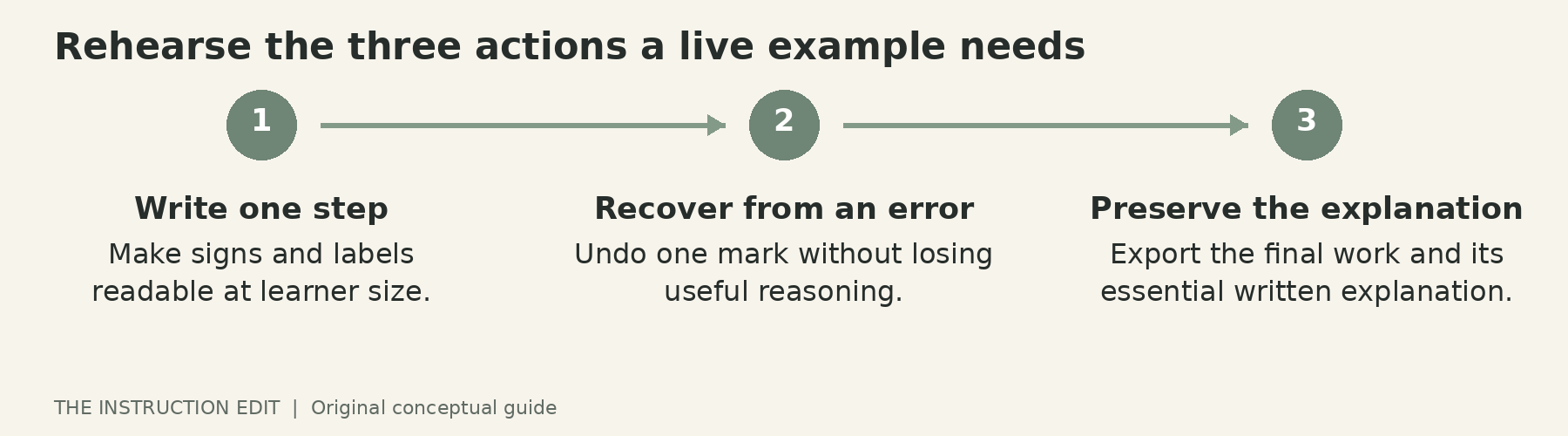
During this rehearsal, check three small but revealing actions. Can you write the parentheses without undoing them repeatedly? Can you point to the original expression without accidentally drawing? Can you erase one mark without removing a useful earlier step? If not, simplify the controls before adding shortcuts.
Now deliberately make a plausible error and correct it. Live explanations need a recovery path. If switching tools consumes the conversation, prepared steps with space for a short handwritten annotation may be the better hybrid.
Mapping and handedness need a practical check
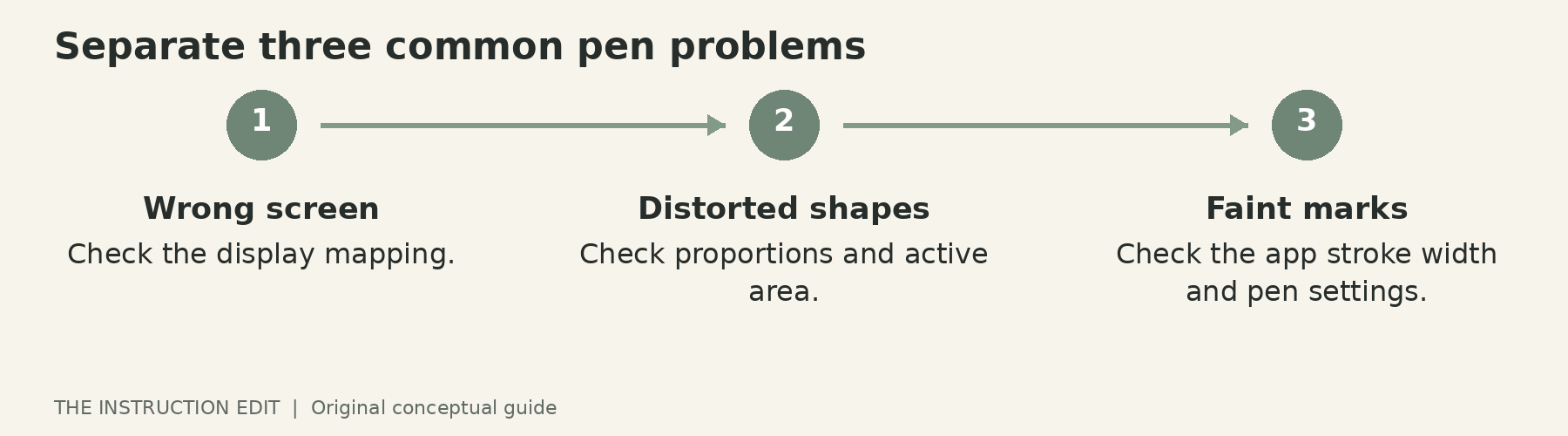
With more than one monitor, an awkward mapping can make a small writing area feel harder to control. Wacom's mapping documentation explains how to map the tablet to one display or a portion of a display and how to preserve proportions. Begin by mapping to the screen you will share, rather than spreading the pen across an unnecessarily large desktop.
Position the tablet, keyboard and cable for your writing hand. Try the actual reach to the undo key and the conference controls. Wacom's work-area guidance emphasizes accessible positioning and matching pen movement to cursor direction. Left-handed and right-handed educators should both rehearse the arrangement instead of assuming a product photograph shows the only usable position.
A screenless tablet needs mapping rather than pen-to-screen alignment. A touchscreen may have its own calibration or pen settings. Keep those problems separate when troubleshooting: a distorted circle, a displaced cursor and a thin line can have different causes.
Who should skip the purchase
Do not buy the CTL4100 if you need a device that works independently of a computer, cannot obtain the required setup permissions, or already have a reliable pen-enabled screen. It is also unnecessary when your teaching rarely changes the prepared visual in response to learners.
For a compatible non-touch computer, it is a reasonable option to investigate after a small rehearsal. The next action is specific: choose one worked example, record it with your current setup and list the actual failure. Buy only if the proposed tablet addresses that failure without creating a larger one.
Sources and selection basis
This is a research-based comparison, not a firsthand hardware review. Product identity and documentation were checked on 25 October 2026. See the Wacom CTL4100 product page, driver guide, mapping guide and platform guidance. Prices, seller quality and current stock are not asserted.
