
Before buying a scanner, check whether the resource already exists as an accessible digital original and whether you have permission to reproduce it. If your team created the document, the editable source may be more useful than a scan. If the school copier can produce the needed file, another device may add little.
A portable scanner can be useful for small amounts of loose paper that need regular digitizing near your workstation. It is a poor substitute for a batch machine when the task is a department archive. More importantly, capturing a page and creating an accessible teaching resource are not the same job.
Identify the actual pile
Sort a small representative sample before choosing hardware. Separate single-sided loose sheets, double-sided sheets, fragile originals, bound pages, photographs and unusual sizes. Count the pages you expect to handle in an ordinary session, not only the exceptional mountain from the cupboard.
Then define the output. Do you need a searchable archive, an editable worksheet, a source for text-to-speech, or a faithfully reproduced diagram? Those goals may need different checking and remediation. A searchable PDF can help locate a word while still presenting a difficult reading order.
Try the existing copier or an approved phone-scanning tool on five representative pages. Include the most awkward example, not five pristine paragraphs. Check the resulting files with the people who will use them. If the baseline already works, improve naming and storage before buying hardware.
Where the Epson WorkForce ES-50 fits
This article contains affiliate links. The Instruction Edit may earn a commission if you purchase through them. As an Amazon Associate I earn from qualifying purchases.
The Epson WorkForce ES-50 on Amazon, affiliate link, is a specific portable option for occasional loose-page scanning. The US manufacturer model is B11B252201. Do not confuse it with the wireless ES-60W or assume that similarly named models have the same workflow.

Epson WorkForce ES-50 (B11B252201). Product image source: Epson America.
Epson's ES-50 product page describes a USB-powered, single-sheet scanner for Windows and Mac with ScanSmart and OCR-related output options. It is not an automatic duplex batch scanner. You feed sheets individually, and two-sided originals require a deliberate second-side process.
That trade-off is central. A compact device may suit a teacher converting a handful of permitted handouts. For a large stack of double-sided documents, individual feeding and page-order checks may outweigh its portability. A bound book also does not become a loose sheet because a scanner is nearby.
| Route | Reason to choose it | Limitation to check |
|---|---|---|
| Epson ES-50 | Small, recurring loose-page jobs near a compatible computer | Single-sheet handling; no automatic duplex batch workflow |
| Existing school copier | Shared batches and possible duplex scanning | Actual scan settings, account permissions, collection and file delivery |
| Approved phone scan | Occasional pages or material that cannot enter a sheet feeder | Lighting, distortion, app privacy and OCR/export capability |
| Digital original | Editing, reflow and preserving document structure | Correct version, rights and whether the original is genuinely accessible |
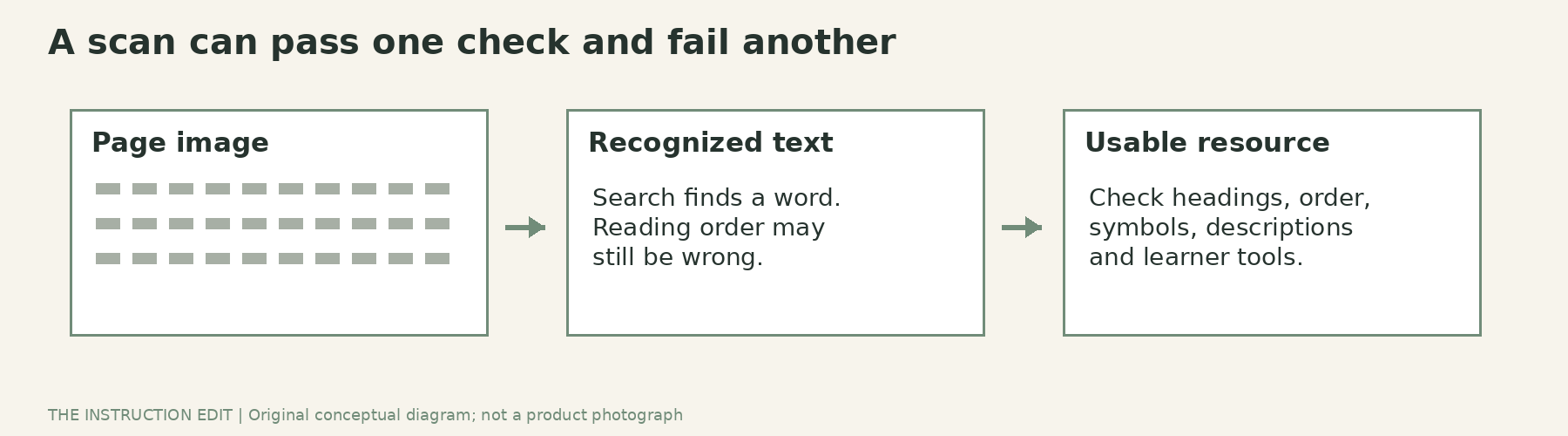
Separate three jobs in a digitization project. Original conceptual illustration.
Searchable is a starting point, not a finish line
Epson's ES-50 ScanSmart saving guidance documents saving to a computer folder as PDF, searchable PDF or JPEG, with an OCR-language choice for searchable PDF. It also allows the automatically detected filename to be changed. Those are useful workflow controls, not evidence that every recognized word will be correct.
The actual ES-series user guide describes reviewing scans and separate destinations, including local saving and cloud services. Local saving is documented, but do not infer a blanket guarantee that every software version, installation or OCR function can operate without internet access. Ask IT to verify the intended version and offline requirements on the institution's machine.
If the material is sensitive, use only an approved processing and storage route. A convenient cloud button is not permission to upload learner records. Remove unnecessary identifying information before any trial. This is a practical privacy precaution, not legal advice about reproduction or retention.
An illustrative five-page acceptance test
Imagine a department has five self-authored science sheets: a plain paragraph, a two-column explanation, a table, a diagram with labels and an equation-heavy page. The goal is a searchable teaching archive, with selected pages later adapted for learners. This is a proposed test, not a report of ES-50 performance.
Scan the five pages using the existing route first. Search for one distinctive term from each. Copy a paragraph into a plain text editor and inspect the order. Check the table headings against the values. Inspect symbols, subscripts and minus signs manually. Compare the diagram's labels with the original rather than assuming the OCR has understood their relationships.
A file can pass the word-search check and fail the reading-order check. Record those separately. If the desired end product is an accessible handout, returning to an editable original or rebuilding a short page may be more sensible than repairing a complex scan.
Do not feed damaged, stapled or unsuitable originals merely to complete the test. Follow the device's paper-handling guidance and use another capture method where the original should not go through a feeder.
Build a naming and review routine
Decide the filename before scanning: subject, concept, resource type and version are more useful than an unexplained date alone. For example, forces-balanced-unbalanced-explanation-v1 tells a colleague what they are opening. Avoid personal information in filenames that may be exposed in shared folders.
Keep capture quality, text accuracy and accessibility as separate review fields. Assign an owner for each file that is going to learners. A folder called accessible does not perform the checks on its contents.
For double-sided sheets, verify front/back sequence and missing pages before deleting temporary files. Keep an approved original where needed. Test the final export in the actual learning platform and with the relevant reading tools, not only in the scanner preview.
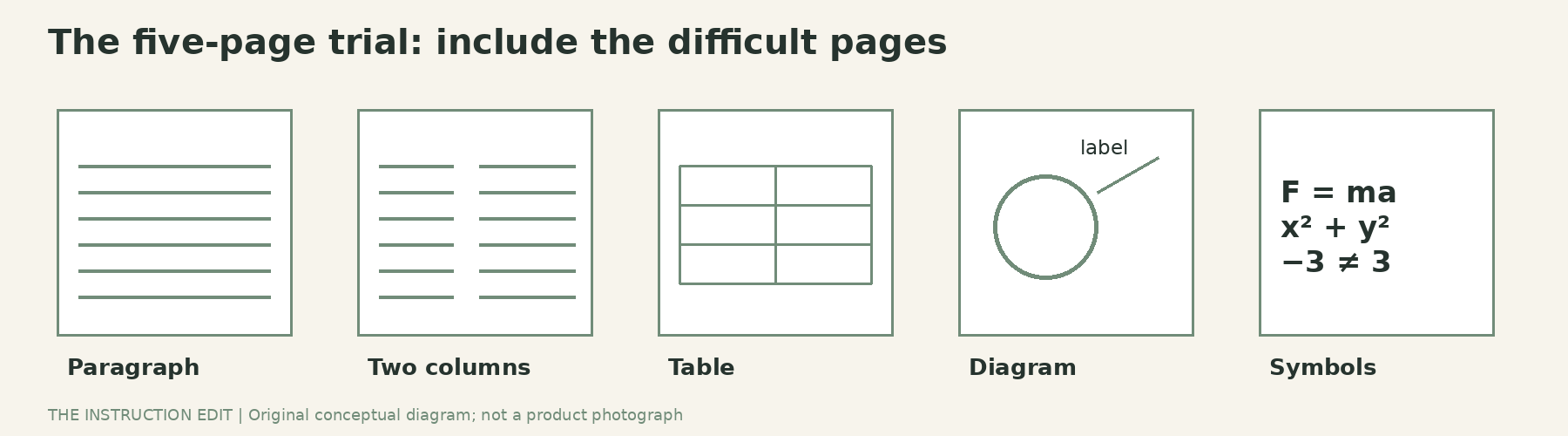
A small scan test can reveal a large workflow problem. Original conceptual illustration.
Who should not buy
Skip the ES-50 if most work is high-volume duplex scanning, bound books, or material that should not enter a sheet feeder. Also skip it if the copier already meets the need or if the missing capability is document remediation rather than capture.
For modest loose-page work, it is a plausible compact option. The next action is not a shopping basket: run the five-page test, note where the present workflow fails, and choose equipment only after separating capture problems from document-design problems.
Sources and selection basis
This guide uses Epson product information, model-specific save instructions and the user guide, checked on 25 October 2026. Amazon identity was verified; no measured OCR accuracy, scan-speed test, price or availability claim is made.
